Quickstart
Let's get started! This guide will walk you through the basics of Phobos, from defining a simple pipeline template and executing it to creating a release.
Prerequisites
- A running Phobos instance (see Docker setup for the quickest option)
- Phobos CLI installed and configured
After installing the CLI, configure it to point to your Phobos instance and log in:
phobos configure
phobos sso login
Create a project
phobos project create -org-name "<organization>" <project>
If you don't have an organization, ask a system administrator to create one for you.
Define a pipeline template
Create a new file called pipeline.hcl with the following content:
plugin exec {}

stage "test" {
  task "preliminary" {
    action "exec_command" {
      command = <<EOF
          echo "This action will run before the main task."
        EOF
    }
  }
}

stage "deploy" {
  task "main" {
    action "exec_command" {
      command = <<EOF
        echo "This is a command that will sleep for 10 seconds"
        sleep 10
      EOF
    }
    output "exit_code" {
      value = this.action.exec_command.outputs.exit_code
    }
  }
}

stage "cleanup" {
  task "final" {
    action "exec_command" {
      command = <<EOF
          echo "This action will only run if the previous action was successful."
          echo "The exit code of the deploy's main task was ${pipeline.stage.deploy.task.main.outputs.exit_code}."
        EOF
    }
  }
}
Let's break down the pipeline template:
-
The
pluginblock defines the plugin that will execute the pipeline. In this case, we're using theexecplugin, which simply executes a script. It's a built-in plugin that comes with Phobos. Eachpluginmust be defined in a separate block. -
The
stageblock defines a stage in the pipeline. It contains one or moretaskblocks. Eachtaskblock contains one or moreactionblocks. A stage is a logical grouping of tasks. In this example, we have three stages:test,deploy, andcleanup. -
The
taskblock defines a task in the pipeline. A task is a logical grouping of actions. In this example, we have one task in each stage:preliminary,main, andfinal. A task can have zero or more actions. -
The
actionblock defines an action in the pipeline. An action is a single unit of work. In this example, we have one action in each task:exec_command. An action can have zero or more outputs. -
The
exec_commandaction is used to execute a shell command. It takes a single argument,command, which is the command to execute. The output of this action is the exit code of the command. -
The
<<EOFsyntax is called a heredoc. It's a way to define multi-line strings in HCL. TheEOFat the end of the block is called the delimiter. It's used to mark the end of the heredoc. This is a common way to define multi-line shell commands. -
The
${pipeline.stage.deploy.task.main.outputs.exit_code}syntax is used to reference the output of themaintask in thedeploystage. This is how you can pass data between tasks in a pipeline.
Validate the pipeline template
Always validate your pipeline template before using it. This will ensure that the template doesn't contain any syntax errors among other things.
phobos pipeline validate
Creating a pipeline
A pipeline is a series of automated stages and tasks that build, test, and deploy your application. Now that you have a valid pipeline template, you can create a pipeline from it.
phobos pipeline create -org-name "<organization>" -type "RUNBOOK" -follow <project>
The -follow flag streams the pipeline's progress to your terminal. The -type flag specifies the type of pipeline and is required. In this case, we're creating a RUNBOOK pipeline. Learn more about Pipelines.
You can also view the pipeline details in the Phobos UI within the Pipelines section of the project.
Creating a release (via the UI)
A release is a versioned package of assets and automation that defines how your application is deployed across environments. Let's create one!
Create a versioned pipeline template
To create a release, we need a versioned copy of the pipeline template we just created.
- Navigate to the Pipeline Templates section of the project and select New Pipeline Template.
- Enter a name (e.g.
deploy) and set the semantic version to0.1.0. - Paste the HCL data into the editor or upload the
pipeline.hclfile. - Click Create Pipeline Template.
Pipeline templates can also be created via the CLI. See pipeline-template create.
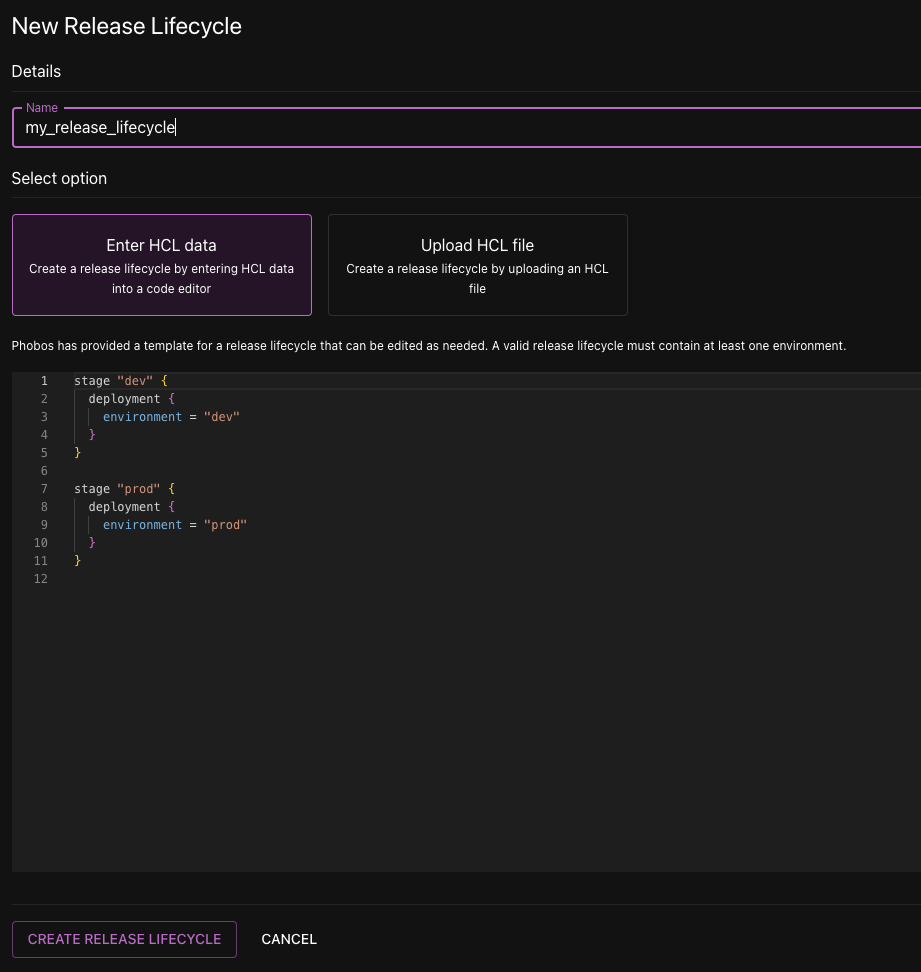
Create a release lifecycle
- Select Release Lifecycles from the project sidebar and select New Release Lifecycle.
- Enter a name for the release lifecycle, enter the HCL data into the editor or upload an HCL file, and click Create Release Lifecycle.
Create a new release
Now we have the minimum requirements to create a release:
- A versioned pipeline template
- A release lifecycle
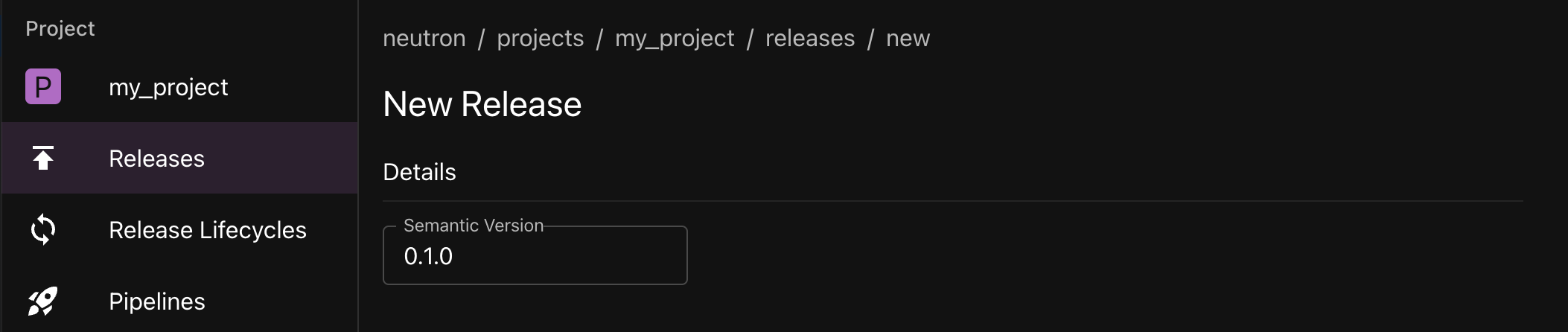
- Navigate to the Releases section of the project and select New Release.
- Enter
0.1.0as the semantic version.
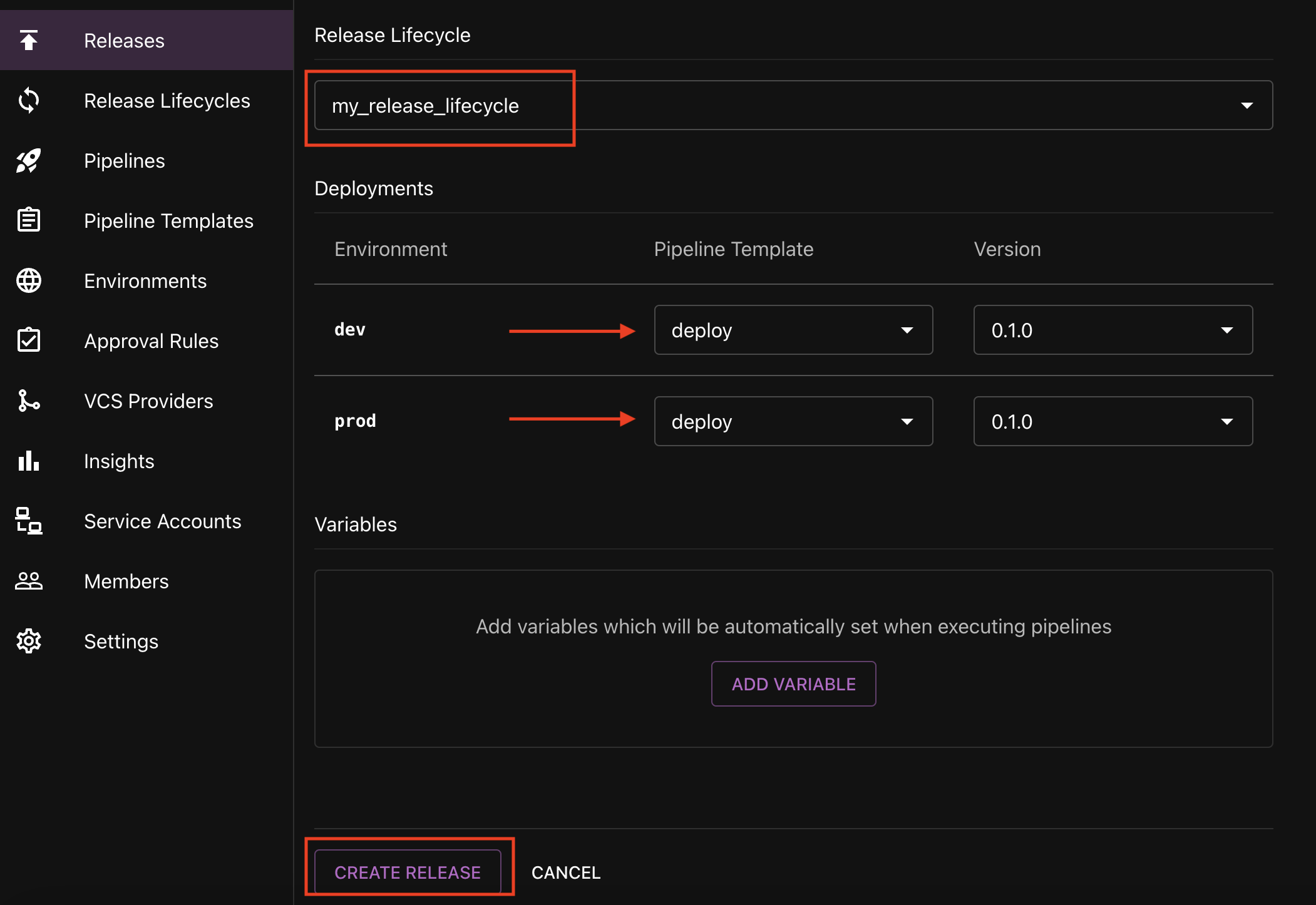
- Select the release lifecycle you just created from the Release Lifecycle dropdown.
- Two deployments will be generated in the Deployments section. For each deployment, select the pipeline template
deploy. By default, the latest version will populate in the Version dropdown. - Click Create Release.
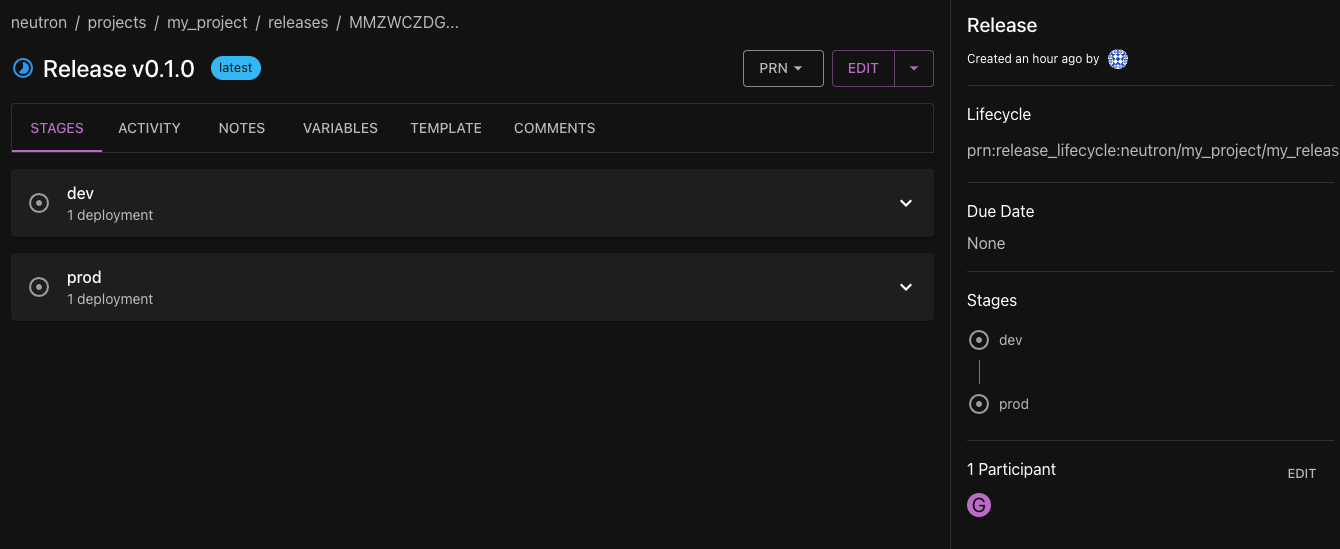
You'll be navigated to the release details page.