Pipeline Template Syntax
The following sections describe the supported fields and types that Phobos supports for pipeline templates.
Install the Phobos VS Code extension for syntax highlighting, diagnostics, auto-completion, and formatting while editing pipeline templates.
All Phobos resources have a Phobos Resource Name (PRN) that uniquely identifies the resource. The PRN is a string that starts with prn: followed by the resource type, and/or the organization and project name, unique id, etc. PRNs are accessible via the UI on the details page for the resource. The description column in the tables below will indicate if a field can use the PRN.
Top-level fields
| Name | Description |
|---|---|
stage | Defines stages in the pipeline template, containing tasks and nested pipelines. |
stage_order | Specifies the execution order of stages in the pipeline template. By default, the stages will be executed based on the order they appear in the template. (optional) |
agent | Sets the default configuration for agent tags. Agent tags determine which agent will pick up and execute the job. Tags can also be specified at the task level. Task-level tags will take precedence over the default tags defined in the agent block. (optional) |
variable | Defines variables used within the pipeline, including their type, default value, and name. |
plugin | Used to configure the plugins used by the pipeline template. |
plugin_requirements | Defines the source and version for external plugins that need to be imported for the configuration. |
jwt | Defines a JSON Web Token (JWT), which is used for OIDC (OpenID Connect) authentication with external systems. |
volume | Defines an external volume that can be mounted into the file system of tasks within the pipeline template. (e.g., a directory from a git repo can be mounted as a volume into a task so that the task can access the files). |
vcs_token | Enables retrieving a VCS token from the specified VCS provider in Phobos. Supports both OAuth and Personal Access Tokens (PAT). |
output | Defines pipeline-level outputs that can be referenced by other pipelines or viewed after execution. (optional) |
Top-level field definitions
stage
| Name | Description | Supported Fields |
|---|---|---|
when | Defines when the stage should be executed (auto or pipeline_failure). | string, optional |
pre | Defines pre-tasks to be executed before the main tasks in the stage. | task |
post | Defines post-tasks to be executed after the main tasks in the stage. | task |
Expand for an example
stage "simple" {
  pre {
    task "pre_task" {
      action "exec_command" {
        command = <<EOF
          echo "This is pre task sleeps for 10 seconds :)"
          sleep 10
        EOF
      }
    }
  }
  task "main_task" {
    action "exec_command" {
      command = <<EOF
        echo "This main task sleeps for 10 seconds :)"
        sleep 10
      EOF
    }
  }
  post {
    task "post_task" {
      action "exec_command" {
        command = <<EOF
          echo "This post task sleeps for another 10 seconds :)"
          sleep 10
        EOF
      }
    }
  }
}
Failure Handling
Stages can be configured to run only when failures occur, enabling cleanup, notifications, or recovery actions.
- Use
when = "pipeline_failure"on a stage to run it only if any previous stage fails - Pipeline failure stages must be defined at the end of the template
- Pipeline failure stages run sequentially after all normal stages complete
- Only
autoandpipeline_failurevalues are supported for stages
Expand for a stage failure handling example
plugin exec {}

stage "s1" {
  task "t1" {
    action "exec_command" {
      command = <<EOF
        ${var.invalid}
      EOF
    }
  }
}

stage "on_pipeline_failure" {
  when = "pipeline_failure"

  task "t1" {
    action "exec_command" {
      command = <<EOF
        echo "running pipeline failure handler"
      EOF
    }
  }
}
In this example:
- Task
t1in stages1will fail due to an invalid variable reference - Stage
on_pipeline_failureruns only after stages1fails
stage_order
| Name | Description |
|---|---|
stage_order | Order of stages in the pipeline template. (optional) |
Expand for an example
stage_order = ["dev", "prod", "test"]
agent
| Name | Description | Supported Fields and Types |
|---|---|---|
tags | Configuration related to an agent | tags (array of strings) |
Expand for an example
agent {
  tags = ["example-tag", "example-tag-2"]
}
variable
| Name | Description | Supported Fields and Types |
|---|---|---|
type | Type of the variable. (optional) | See list of supported types. |
default | Default value for the variable. (optional) | expression |
Expand for an example
variable "account_name" {
  type    = string
  default = "account1"
}
Built-in Variables
Phobos provides several built-in variables that are automatically available in HCL pipeline templates. These variables contain contextual information about the current execution environment and can be referenced without explicit declaration.
| Variable Name | Description |
|---|---|
phobos.organization.name | The name of the organization where the pipeline is executing |
phobos.project.name | The name of the project where the pipeline is executing |
phobos.environment.name | The name of the environment where the pipeline is executing |
phobos.template.name | The name of the pipeline template being executed |
phobos.template.version | The version of the pipeline template being executed |
Expand for an example
stage "example" {
  task "display_context" {
    action "exec_command" {
      command = <<EOF
        echo "Organization: ${phobos.organization.name}"
        echo "Project: ${phobos.project.name}"
        echo "Environment: ${phobos.environment.name}"
        echo "Template: ${phobos.template.name} v${phobos.template.version}"
      EOF
    }
  }
}
plugin
| Name | Description | Types |
|---|---|---|
alias | Alias for the plugin instance. Required when using the same plugin type more than once. Must be lowercase alphanumeric with - and _ allowed in non-leading/trailing positions, max 64 characters. Must differ from the plugin name. (optional) | string, optional |
body | Dependent on the plugin type. See Plugin docs for information on supported fields. |
By default, a plugin's name is its label (e.g., plugin tharsis {} has the name tharsis). When you need multiple instances of the same plugin type, use the alias field to give each instance a unique name. The qualified name becomes <type>.<alias> (e.g., tharsis.dev). Actions reference aliased plugins using the plugin attribute (e.g., plugin = tharsis.dev).
- Each plugin instance must have a unique name or alias.
- If the same plugin type appears more than once, all instances must have an alias.
- A maximum of 5 instances per plugin type is allowed.
- Aliases cannot be the same as the plugin name.
- Aliases cannot be reserved keywords (
pipeline,task,action,stage,deployment,pre,post).
Expand for an example of plugin aliases
plugin tharsis {
  alias                 = "dev"
  api_url               = "https://api.dev.tharsis.example.com"
  service_account_token = jwt.tharsis
  service_account_path  = "dev-group/deploy-sa"
}

plugin tharsis {
  alias                 = "prod"
  api_url               = "https://api.prod.tharsis.example.com"
  service_account_token = jwt.tharsis
  service_account_path  = "prod-group/deploy-sa"
}

stage "deploy" {
  task "deploy-dev" {
    action "tharsis_apply" {
      plugin = tharsis.dev
      # ...
    }
  }

  task "deploy-prod" {
    action "tharsis_apply" {
      plugin = tharsis.prod
      # ...
    }
  }
}
In this example, two instances of the tharsis plugin are configured with different aliases (dev and prod). Each action uses the plugin attribute to reference the desired instance (e.g., plugin = tharsis.dev).
plugin_requirements
| Name | Description | Types |
|---|---|---|
replace | Used to override the plugin with a local filesystem path. (optional) | string |
version | Version of the plugin. (optional) | string |
source | Source of the plugin. | string |
jwt
Phobos supports the use of JSON Web Tokens (JWTs), which allows for OIDC authentication, ensuring secure access to external resources. The jwt block defines a JWT with an audience and name.
| Name | Description | Types |
|---|---|---|
audience | Audience for the JWT. | string |
Expand for an example
plugin_requirements {
  tharsis = {
    source  = "martian-cloud/tharsis"
    version = "0.2.0"
  }
}

jwt "tharsis" {
  audience = "tharsis"
}

plugin tharsis {
  api_url               = "https://api.tharsis.example.com"
  service_account_token = jwt.tharsis
  service_account_path  = "example-tharsis-group/example-service-account"
}
The JWT can be used in the service_account_token field of a plugin to authenticate with an external system. In this example, the tharsis plugin uses the tharsis JWT to authenticate with the Tharsis API.
Bound claims
Phobos supports bound claims, which are claims that are bound to a specific JWT. Bound claims are used to restrict the use of a claim to a specific JWT. Below are a list of bound claims that Phobos supports:
| Claim | Description |
|---|---|
aud | The intended audience of the JWT |
sub | The PRN of the project |
project_name | The name of the project |
org_name | The name of the organization |
pipeline_id | The unique identifier of the pipeline |
pipeline_type | The type of the pipeline |
is_release | Indicates if the pipeline is a release |
release_prn | The PRN of the release |
release_lifecycle_prn | The PRN of the release lifecycle |
environment | The environment in which the pipeline is executed |
Expand for an example
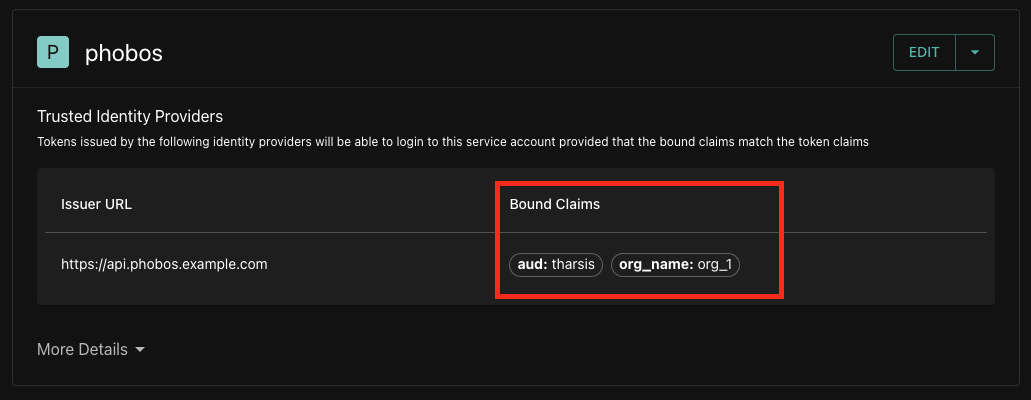
Below is an example of using bound claims with an external system. Two bound claims, aud and org_name, are attached to a service account within Tharsis.
volume
Volumes and mount points in Phobos allow you to mount directories from VCS providers into your pipeline. Also, see the mount_point block for more information and for an additional example.
| Name | Description | Supported Fields and Types |
|---|---|---|
vcs_options | VCS options for the volume type. | ref (string, optional), repository_path (string), provider_id (id or prn of the VCS provider; string), include_path (string, optional), exclude_paths (list of strings, optional) |
type | Type of the volume. | string |
Expand for an example
volume "tools" {
  type = "vcs"
  vcs_options {
    provider_id     = "vcs_provider_id"
    repository_path = "martian/tools"
    ref             = "main"
    include_path    = "src/scripts"
    exclude_paths   = ["src/scripts/tests", "src/scripts/docs"]
  }
}
The include_path and exclude_paths fields allow you to filter which directories are downloaded from the repository. This is useful for large monorepos to reduce download size and time. You can use either field independently or both together.
include_path: Download only files from this directory (e.g.,"src/backend")exclude_paths: Exclude specific directories from the download (e.g.,["tests", "docs"])- Maximum 10 exclude paths allowed
- Only supported for GitLab repositories; GitHub will return an error if path filtering is used
- Paths are normalized automatically (leading/trailing slashes removed)
vcs_token
The vcs_token block is used to retrieve a VCS token from the specified VCS provider in Phobos. The vcs_token block supports both OAuth and Personal Access Tokens (PAT). This eliminates the need to store sensitive tokens in the pipeline template or pass them as variables. This token can be used to initialize a GitLab plugin, for example.
| Name | Description | Supported Fields and Types |
|---|---|---|
provider_id | ID or PRN of the VCS provider in Phobos. | string |
This block will expose the following fields for use in the pipeline template:
| Name | Description | Types |
|---|---|---|
file_path | Path to the token file. (e.g., vcs_token.gitlab_token.file_path). The token in the file will be updated automatically before expiration, if applicable. | string |
value | Static token value. (e.g., vcs_token.gitlab_token.value). This value will not be updated. | string |
Expand for an example
vcs_token "gitlab_token" {
  provider_id = "prn:vcs_provider:my-org/gitlab"
}

plugin_requirements {
  gitlab = {
    source  = "martian-cloud/gitlab"
  }
}

plugin gitlab {
  api_url    = "https://gitlab.example.com/api/v4"
  token_file = vcs_token.gitlab_token.file_path
  auth_type  = "oauth_token"
}
In the example above, the vcs_token block retrieves a token from the GitLab VCS provider in Phobos. The gitlab plugin uses this token to authenticate with the GitLab API. The token field in the gitlab plugin is set to the file_path of the gitlab_token VCS token, ensuring the plugin uses the latest token before expiration. The auth_type field is set to oauth_token, indicating that the token is an OAuth token. Refer to the plugin's documentation for more details on supported authentication methods.
Ensure that the token is not exposed in the pipeline template or in the logs. The token should be stored securely and not shared with unauthorized users. A feature to mask sensitive data in the logs may be available in future releases.
output
Pipeline-level outputs allow you to expose values from your pipeline that can be referenced by other pipelines or viewed after execution. Outputs can contain any expression, including references to task outputs, variables, or computed values.
| Name | Description | Supported Fields and Types |
|---|---|---|
value | The value of the output (required) | expression |
description | Description of the output (optional) | string, optional |
Expand for an example
plugin exec {}

stage "build" {
  task "compile" {
    action "exec_command" {
      command = "make build"
    }

    output "version" {
      value = "1.2.3"
    }

    output "artifact" {
      value = "/builds/app-1.2.3.tar.gz"
    }
  }
}

stage "deploy" {
  task "release" {
    dependencies = ["build.compile"]

    action "exec_command" {
      command = "deploy.sh ${pipeline.stage.build.task.compile.outputs.artifact}"
    }

    output "url" {
      value = "https://app.example.com"
    }
  }
}

output "build_version" {
  description = "The version that was built"
  value = pipeline.stage.build.task.compile.outputs.version
}

output "deployment_url" {
  description = "URL where the application was deployed"
  value = pipeline.stage.deploy.task.release.outputs.url
}

output "summary" {
  value = "Deployed version ${pipeline.stage.build.task.compile.outputs.version} to ${pipeline.stage.deploy.task.release.outputs.url}"
}
Sub-level fields and definitions
task
Tasks are one of the two fundamental units of work in a stage (the other being pipelines). Tasks utilize the plugin framework, which gives tasks access to a plugin's actions (see Plugins).
A task is executed automatically by default when it's ready; however, a task can also be manual in which case it would need to be manually started. A task can also act as a gate by setting the interval and success_condition fields. When the interval field is set, the task will be executed periodically until either the success condition has been satisfied or max attempt limit has been reached.
A task can also define a list of approval_rules, which specifies the members who can approve the task. Learn more about Approval Rules.
| Name | Description | Supported Fields and Types |
|---|---|---|
dependencies | Defines dependencies for the task. | array of strings, optional |
success_condition | Condition that determines if the task was successful. | expression, optional |
approval_rules | Unique identifiers or PRNs for approval rules for the task. | array of strings, optional |
when | Defines when the task should be executed (auto, manual, stage_failure, or never). | string, optional |
interval | Interval for repeatable tasks. Must be 1m or greater. | string, optional |
attempts | Number of attempts for the task. | integer, required if interval is set |
agent | Configuration for the agent to execute the task. | tags (array of strings), optional |
action | Actions to be executed within the task. | action, optional |
mount_point | Mount points for volumes within the task. | mount_point, optional |
schedule | Schedule the task's start time using a datetime or cron expression | schedule, optional |
if | Condition to execute the task. When the condition is false, the task will be skipped. | expression, optional |
image | Container image to use for the task execution. | string, optional |
on_error | Behavior when the task fails. Can be fail (default) or continue. | string, optional |
agent | Agent configuration specific to this task. | agent, optional |
output | Defines outputs that can be referenced by other tasks or pipelines. | output, optional |
Each task runs in its own isolated container. Files written to /tmp or other filesystem locations will not persist between tasks. To share data between tasks, use task outputs (see exec plugin). When referencing outputs from tasks in the same stage, use the dependencies array to specify execution order, since tasks execute in parallel by default.
By default, failed tasks do not produce accessible outputs since the pipeline stops execution. A task with on_error = "continue" doesn't stop execution when it fails, so its outputs remain accessible to subsequent tasks.
Task Failure Handling
Tasks can be configured to run only when other tasks in the same stage fail, enabling cleanup, notifications, or recovery actions.
- Use
when = "stage_failure"on a task to run it only if other tasks in the same stage fail - Stage failure tasks run after all normal tasks in the stage complete
- Supported values:
auto(default),manual,stage_failure,never
Restrictions for when = "stage_failure" tasks:
- Cannot have
dependencies- they run after all normal tasks complete - Cannot have
on_error = "continue"- would create ambiguous behavior - Same restrictions apply to nested pipelines with
when = "stage_failure"
Expand for an example
plugin exec {}

stage "s1" {
  task "t1" {
    action "exec_command" {
      command = <<EOF
        ${var.invalid}
      EOF
    }
  }

  task "on_stage_failure" {
    when = "stage_failure"
    action "exec_command" {
      command = <<EOF
        echo "running stage failure handler"
      EOF
    }
  }
}
In this example:
- Task
t1will fail due to an invalid variable reference - Task
on_stage_failureruns only aftert1fails
action
| Name | Description | Types |
|---|---|---|
alias | Alias for the action. (optional) | string, optional |
label | Label for the action in the format "plugin-name_action-name" (e.g., "exec_command"). | string |
plugin | Reference to a specific plugin instance when using aliases. Format: <type>.<alias> (e.g., tharsis.dev). The type must match the action label prefix. (optional) | reference, optional |
Multiple actions within a task execute sequentially in the order they are defined. Each action can reference outputs from previously executed actions using this.action.<ACTION_NAME>.outputs.<OUTPUT_NAME>. No dependencies array is needed since execution order is guaranteed.
Expand for an example of action-to-action references
task "sequential_actions" {
  action "exec_command" {
    alias = "first"
    dot_env_filename = ".env"
    command = "echo 'result=value1' > .env"
  }

  action "exec_command" {
    alias = "second"
    command = <<EOF
      # Reference the first action's output
      FIRST_RESULT="${this.action.first.outputs.dot_env.result}"
      echo "Received from first action: $FIRST_RESULT"
    EOF
  }
}
output
Outputs allow you to expose values from tasks or pipelines that can be referenced by other tasks or pipelines. Task outputs can contain computed values, action results, or any expression.
| Name | Description | Types |
|---|---|---|
value | The value of the output (required) | expression |
description | Description of the output (optional) | string, optional |
Expand for task output examples
stage "build" {
  task "compile" {
    action "exec_command" {
      command = "make build"
    }

    output "build_time" {
      description = "Timestamp when the build completed"
      value = timestamp()
    }

    output "exit_code" {
      value = this.action.exec_command.outputs.exit_code
    }

    output "build_version" {
      description = "Version number for this build"
      value = "1.2.3"
    }
  }

  task "test" {
    dependencies = ["compile"]

    action "exec_command" {
      command = <<EOF
        echo "Testing build from ${pipeline.stage.build.task.compile.outputs.build_time}"
        echo "Build version: ${pipeline.stage.build.task.compile.outputs.build_version}"
      EOF
    }
  }
}
Expand for pipeline output examples
Pipeline-level outputs are defined at the top level of the template and can reference any task or stage outputs.
plugin exec {}

stage "build" {
  task "compile" {
    action "exec_command" {
      command = "make build"
    }

    output "version" {
      value = "1.2.3"
    }
  }
}

stage "deploy" {
  task "release" {
    action "exec_command" {
      command = "deploy.sh"
    }

    output "deployment_url" {
      value = "https://app.example.com"
    }
  }
}

output "build_version" {
  description = "The version that was built and deployed"
  value = pipeline.stage.build.task.compile.outputs.version
}

output "deployment_info" {
  value = "Version ${pipeline.stage.build.task.compile.outputs.version} deployed to ${pipeline.stage.deploy.task.release.outputs.deployment_url}"
}
mount_point
Mount points and volumes in Phobos allow you to mount directories from VCS providers into your pipeline. See the volume block above for more information and for an additional example.
| Name | Description | Types |
|---|---|---|
path | Path where the volume will be mounted. (optional) | string |
volume | Volume to be mounted. | string |
Expand for an example
plugin "exec" {}

volume "demo_project" {
  type = "vcs"
  vcs_options {
    provider_id     = "prn:vcs_provider:example-provider"
    ref             = "main"
    repository_path = "path/to/repo"
  }
}

stage "security_scans" {
  task "scan" {
    mount_point {
      volume = "demo_project"
      path   = "/"
    }
    action "exec_command" {
      command = <<EOF
        echo "Simulated security scan by listing files in directory"
        ls -la
        sleep 5
      EOF
    }
  }
}
The scan task mounts the demo_project volume to the root directory. The exec_command action lists the files in the directory and sleeps for 5 seconds.
schedule
The schedule block is used to set a datetime or cron schedule for a task/pipeline. When specifying the schedule block, the when field for the task or pipeline node must be set to auto since the task/pipeline will be automatically started based on the specified schedule once the task/pipeline moves out of the BLOCKED state. The schedule can also be updated after the pipeline has been created via the API/UI.
| Name | Description | Types |
|---|---|---|
type | The type of schedule which can be set to datetime or cron | string |
options | The options are specific to the type of schedule specified by the type field | object |
Datetime schedule type
The datetime schedule type requires a timestamp in RFC3339 format. When the task/pipeline moves out of the BLOCKED state it'll automatically be scheduled to start at the specified time, if the datetime is in the past then the task/pipeline will start immediately.
Cron schedule type
The cron schedule type requires a cron expression and timezone in order to calcuate the scheduled start time. When the task/pipeline moves out of the BLOCKED state, the cron expression will be evaluated to determine what the scheduled start time will be. It's important to note that the cron expression does not get evaluated until the task/pipeline node transitions out of the BLOCKED state.
The cron schedule is only used to calculate the scheduled start time for the task/pipeline node and does not cause it to run periodically (i.e. the task/pipeline will only run a singe time)
Expand for an example
stage "main" {
  task "t1" {
    schedule {
      type = "datetime"
      options = {
        value = "2024-11-25T14:50:00.000Z"
      }
    }
  }

  task "t2" {
    schedule {
      type = "cron"
      options = {
        expression = "* * * * 5#3"
        timezone = "America/New_York"
      }
    }
  }

  pipeline "p1" {
    when = "auto"
    schedule {
      type = "cron"
      options = {
        expression = "* 12 * * *"
        timezone   = "UTC"
      }
    }
    template_id = var.nested_pipeline_prn
  }
}
The t1 task is scheduled using a specific datetime in RFC3339 format. The task t2 is scheduled using a cron expression which will set the scheduled start time to 12AM on the 3rd Friday of the Month in the America/New_York timezone. The nested pipeline p1 also has a cron schedule which will set the scheduled start time to 12PM UTC time.
Action outputs
Actions can have outputs that can be used in subsequent tasks. The outputs are defined in the action block.
Expand for an example
stage "test" {
  pre {
    task "ex_1" {
      action "tharsis_create_workspace" {
        name           = "example-workspace"
        group_path     = var.tharsis_group_path
        description    = "Workspace created from Phobos"
        skip_if_exists = true
      }
      output "workspace_path" {
        value = this.action.tharsis_create_workspace.outputs.path
      }
    }
  }
    }
  }
  task "ex_2" {
    dependencies = ["ex_1"]
    action "tharsis_create_run" {
      # Reference output from ex_1 task
      workspace_path = pipeline.stage.test.pre.task.ex_1.outputs.workspace_path
      auto_approve   = false
    }
  }
  post {
    task "ex_3" {
      approval_rules = ["prn:approval_rule:example_approval_rule"]
      action "tharsis_delete_workspace" {
        # Reference output from ex_1 task
        workspace_path = pipeline.stage.test.pre.task.ex_1.outputs.workspace_path
        force          = true
      }
    }
  }
}
The ex_2 and ex_3 tasks use outputs from the ex_1 task's tharsis_create_workspace action to access the workspace path.
pre and post
The pre and post blocks within a stage allow you to define tasks that run before and after the main stage tasks. These are useful for setup, validation, and cleanup operations.
| Name | Description | Supported Fields |
|---|---|---|
task | Tasks to be executed in the pre or post condition. | task, required |
Expand for an example
stage "deploy" {
  pre {
    task "validate" {
      action "exec_command" {
        command = "echo 'Running pre-deployment validation'"
      }
    }
  }

  task "deploy_app" {
    action "exec_command" {
      command = "echo 'Deploying application'"
    }
  }

  post {
    task "cleanup" {
      action "exec_command" {
        command = "echo 'Running post-deployment cleanup'"
      }
    }
  }
}
The validate task runs before any main stage tasks, and the cleanup task runs after all main stage tasks complete.
pipeline
The pipeline block is used to define and launch nested pipelines.
| Name | Description | Supported Fields and Types |
|---|---|---|
template_id | ID or PRN of the pipeline template to execute. (required) | string or expression |
pipeline_type | Type of pipeline: nested (default) or deployment. | string, optional |
environment | Environment name. Required when pipeline_type = "deployment", forbidden for nested type. | string, conditional |
variables | Variables to pass to the pipeline. | map, optional |
when | Execution trigger: auto (default), manual, stage_failure, or never. | string, optional |
dependencies | Names of other tasks/pipelines in the stage that must complete first. | array of strings, optional |
approval_rules | IDs or PRNs of approval rules required before execution. | array of strings, optional |
schedule | Schedule the pipeline's start time using a datetime or cron expression. | schedule, optional |
if | Condition to execute the pipeline. When false, the pipeline is skipped. | expression, optional |
on_error | Behavior on failure: fail (default) or continue. | string, optional |
Expand for a basic example
stage "dev" {
  pipeline "deploy" {
    pipeline_type = "deployment"
    environment   = "dev-account"
    template_id   = "prn:pipeline_template:my-org/my-project/HA2WGZRVHFSGELJXGE4WELJUMNQTSLLCGRSDGLLBGZRTSYJRHFRGCM3GMVPVAVA"
  }
}
This executes a deployment pipeline template in the dev-account environment.
Expand for a deployment pipeline with approvals and variables
stage "production" {
  pipeline "deploy" {
    pipeline_type = "deployment"
    environment   = "prod-account"
    template_id   = "HA2WGZRVHFSGELJXGE4WELJUMNQTSLLCGRSDGLLBGZRTSYJRHFRGCM3GMVPVAVA"
    when          = "manual"
    approval_rules = [
      "prn:approval_rule:my-org/prod-approvers"
    ]
    variables = {
      deploy_retries = var.max_retries
      timeout        = 600
    }
  }
}
This deployment pipeline requires manual approval, targets a specific environment, and passes variables to the referenced template.
Expand for a conditional pipeline example
stage "validation" {
  pre {
    task "check" {
      action "exec_command" {
        command = "exit 0"  # Validation logic
      }
      output "exit_code" {
        value = this.action.exec_command.outputs.exit_code
      }
    }
  }

  pipeline "deploy" {
    pipeline_type = "deployment"
    environment   = "staging"
    template_id   = "DEPLOY_TEMPLATE_ID"
    if            = pipeline.stage.validation.pre.task.check.outputs.exit_code == 0
    when          = var.auto_deploy ? "auto" : "manual"
  }
}
This pipeline only executes if the validation task succeeds, and uses a variable to determine manual vs automatic execution.
Expand for an example with plugins and volumes
plugin_requirements {
  tharsis = {
    source  = "martian-cloud/tharsis"
    version = "0.2.0"
  }
}

jwt "tharsis" {
  audience = "tharsis"
}

plugin tharsis {
  api_url               = "https://tharsis.example.com"
  service_account_token = jwt.tharsis
  service_account_path  = "example-tharsis-group/example-service-account"
}

volume "volume_1" {
  type = "vcs"
  vcs_options {
    ref             = "main"
    repository_path = "example/path/to/repo"
    provider_id     = "prn:vcs_provider:user/martian_cloud"
  }
}

stage "test" {
  task "create" {
    action "tharsis_create_workspace" {
      name                   = "test_workspace"
      group_path             = "example_group_path"
      description            = "test workspace"
      skip_if_exists         = true
      managed_identity_paths = [
        "example_group_path/sre-account-admins",
        "example_group_path/example-provider"
      ]
    }
    mount_point {
      volume = "volume_1"
      path   = "/"
    }
  }
}
Nested Pipelines
Nested pipelines allow you to create orchestrator templates that compose multiple pipeline templates together. Any pipeline type (RELEASE_LIFECYCLE, DEPLOYMENT, or RUNBOOK) can create child pipelines using the pipeline block.
How nested pipelines work:
- Create and upload child pipeline templates to Phobos (obtain their IDs/PRNs)
- Create an orchestrator template that references children via
template_id - Upload the orchestrator template
- Execute the orchestrator - it spawns child pipelines as configured
Key characteristics:
- Referenced templates are identified by ID or PRN, not embedded inline
- Can pass variables from parent to child pipelines
- Supports up to 10 levels of nesting
- Child pipelines can be
DEPLOYMENT,RUNBOOK, or reference another template DEPLOYMENTpipelines cannot create otherDEPLOYMENTpipelines
Expand for a nested pipeline orchestrator example
variable "deploy_connection_retries" {
  type    = number
  default = 3
}

variable "testing_post_endpoint" {
  type = string
}

stage "dev" {
  pipeline "deploy" {
    pipeline_type = "nested"
    template_id   = "prn:pipeline_template:my-org/my-project/DEPLOY_TEMPLATE_ID"
    variables = {
      deploy_connection_retries = var.deploy_connection_retries
      http_protocol             = "https"
    }
  }

  pipeline "testing" {
    pipeline_type = "nested"
    template_id   = "TESTING_TEMPLATE_ID"
    dependencies  = ["deploy"]
    variables = {
      testing_post_endpoint = var.testing_post_endpoint
    }
  }
}

stage "prod" {
  pipeline "deploy" {
    pipeline_type = "nested"
    template_id   = "prn:pipeline_template:my-org/my-project/DEPLOY_TEMPLATE_ID"
    when          = "manual"
    approval_rules = [
      "prn:approval_rule:my-org/prod-approvers"
    ]
    variables = {
      deploy_connection_retries = 5
      http_protocol             = "https"
    }
  }
}
This orchestrator template references multiple child pipeline templates. The testing pipeline depends on deploy completing first. Each child template was uploaded separately and is referenced by its ID.
Additional resources
Built-in functions
Phobos provides built-in HCL functions that can be used in your pipeline templates. For a complete reference with examples, see the Built-in Functions page.
Dynamic blocks and for_each
The dynamic block allows you to generate multiple blocks dynamically based on the values in a variable. The for_each construct iterates over each item in the variable and creates a corresponding block.
Below is an example pipeline template that demonstrates how to use dynamic blocks and the for_each construct with the Tharsis plugin to create workspaces dynamically.
Expand for an example
variable "tharsis_groups" {
  type = list(object({
    group_path = string
    workspace_name = string
  }))
}

plugin_requirements {
  tharsis = {
    source  = "<registry-hostname>/<organization>/tharsis"
    version = "0.2.0"
  }
}

jwt "tharsis" {
  audience = "tharsis"
}

provider tharsis {
  api_url               = "https://tharsis.example.com"
  service_account_path  = "example-group/example-service-account"
  service_account_token = jwt.tharsis
}

stage "create_workspaces" {
  dynamic "task" {
    for_each = var.tharsis_groups
    labels = [task.value.workspace_name]

    content {
      action "tharsis_create_workspace" {
        group_path = task.value.group_path
        name       = task.value.workspace_name
        description = "Automatically created workspace"
        skip_if_exists = true
      }
    }
  }
}
The stage named create_workspaces contains a dynamic block that generates a task block for each item in the tharsis_groups variable. The for_each construct iterates over each value in the tharsis_groups variable. The labels field is set to the workspace name, ensuring each task has a unique label based on the workspace name. The action block within the dynamically created task uses the tharsis_create_workspace action from the tharsis plugin, setting the group_path, name, description, and skip_if_exists fields based on the current iteration's values and predefined configurations.
For more information on pipeline templates, see the Pipeline Templates page.