Pipeline Schedules
What are pipeline schedules?
Pipeline schedules automate the creation of top-level pipelines on a recurring cadence or at a specific date and time. Instead of manually creating a pipeline each time, you define a schedule and the system creates and runs the pipeline for you when it is due.
Pipeline schedules are a project-level resource. Each schedule is associated with a pipeline template and contains all the information needed to create a pipeline when the schedule is due.
Pipeline schedules are different from scheduling nested pipelines or tasks within an already-running pipeline. Nested scheduling controls when a step inside a pipeline executes, while pipeline schedules control when a new pipeline is created at the top level.
Check the FAQ to see if there's already an answer.
Types of schedules
Pipeline schedules support two schedule types:
- Cron: recurring schedules defined by a cron expression. The minimum allowed interval between runs is 15 minutes.
- One-time: a schedule that fires once at a specific date and time, then moves to a completed state.
The one-time schedule type is represented as DATETIME in the API.
Viewing pipeline schedules
List page
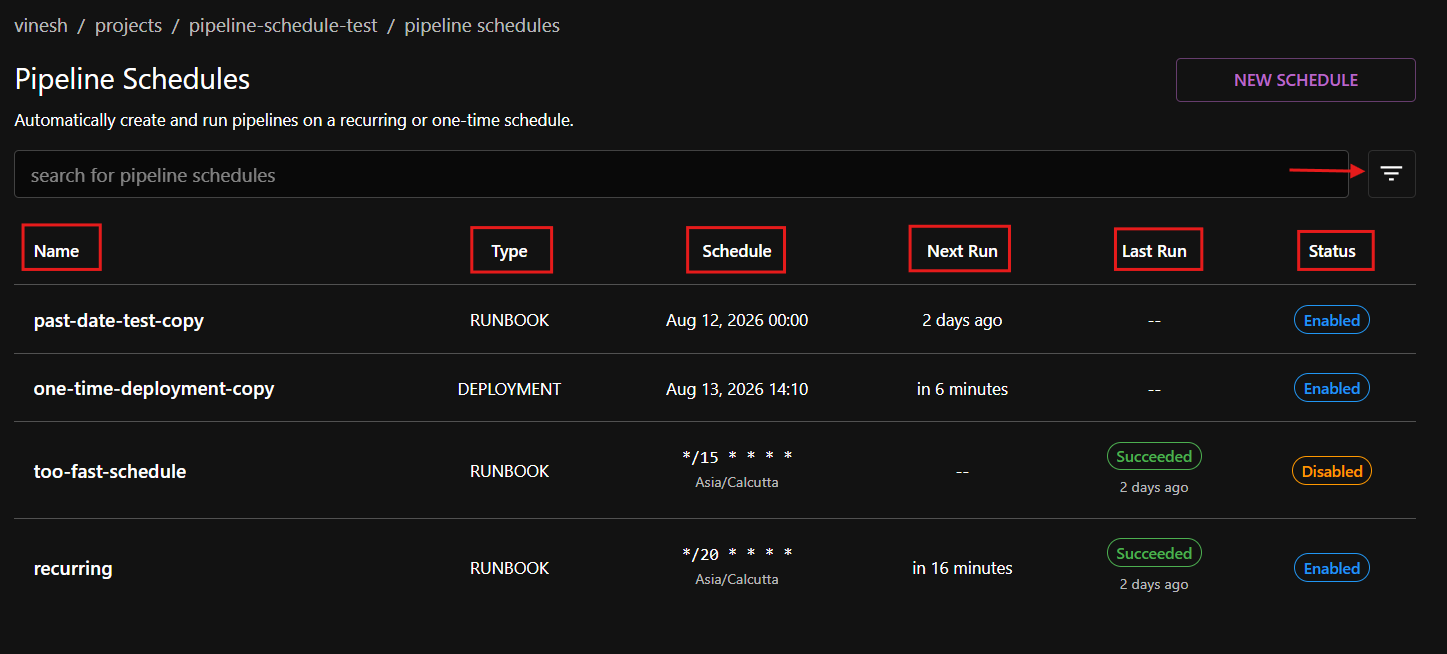
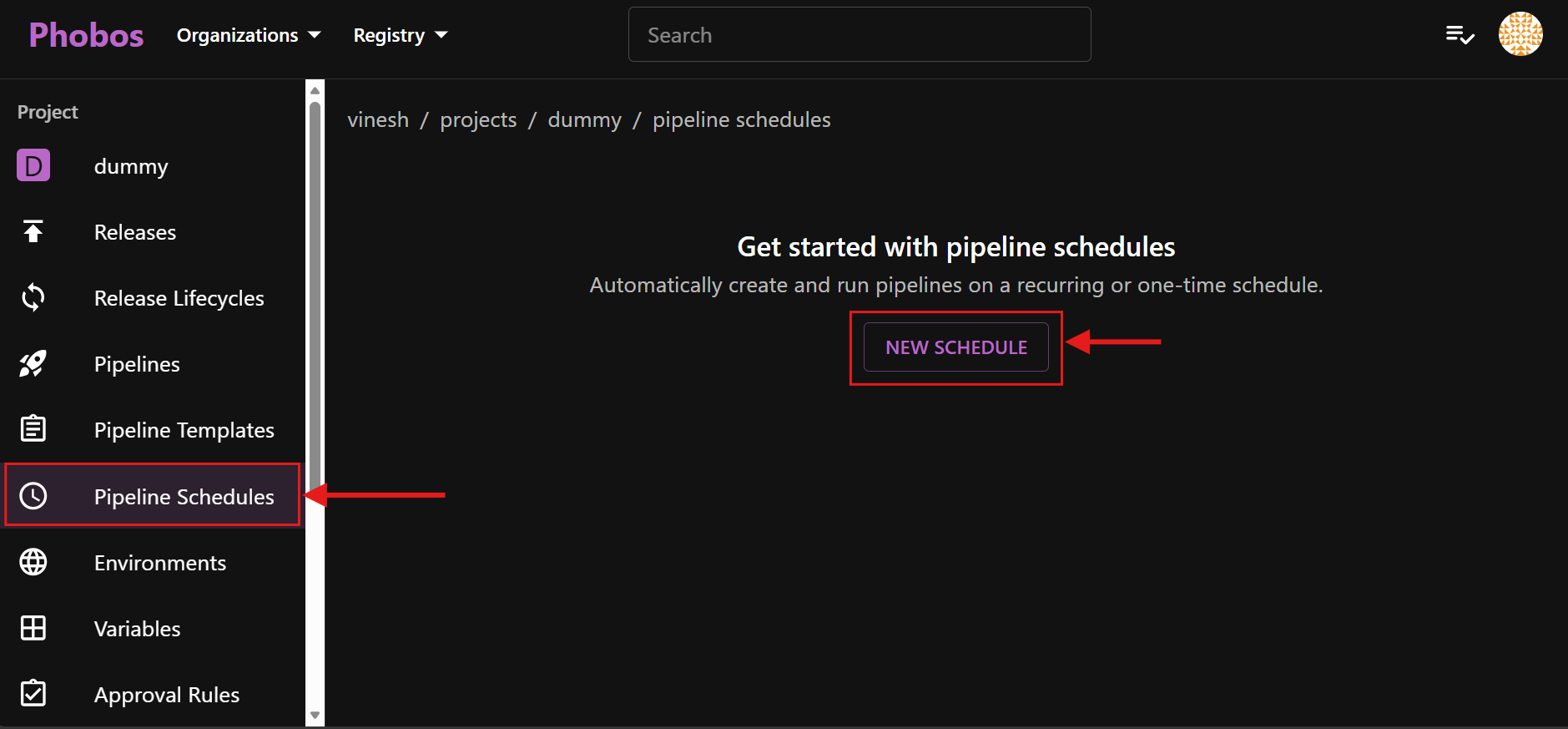
Navigate to the target project and select Pipeline Schedules from the sidebar. The schedules table displays all pipeline schedules in the project. The table displays the following information:
- Name: the name of the schedule
- Type: the pipeline type -
DEPLOYMENTorRUNBOOK - Schedule: the cron expression and timezone (for cron schedules) or the scheduled date (for one-time schedules)
- Next Run: when the next pipeline will be created
- Last Run: the status of the most recently created pipeline, or an error if the schedule failed to start
- Status: current status -
Enabled,Disabled, orCompleted
By default, completed schedules are not shown. Use the filter panel to include them.
Details page
Select a schedule from the list to view its details.
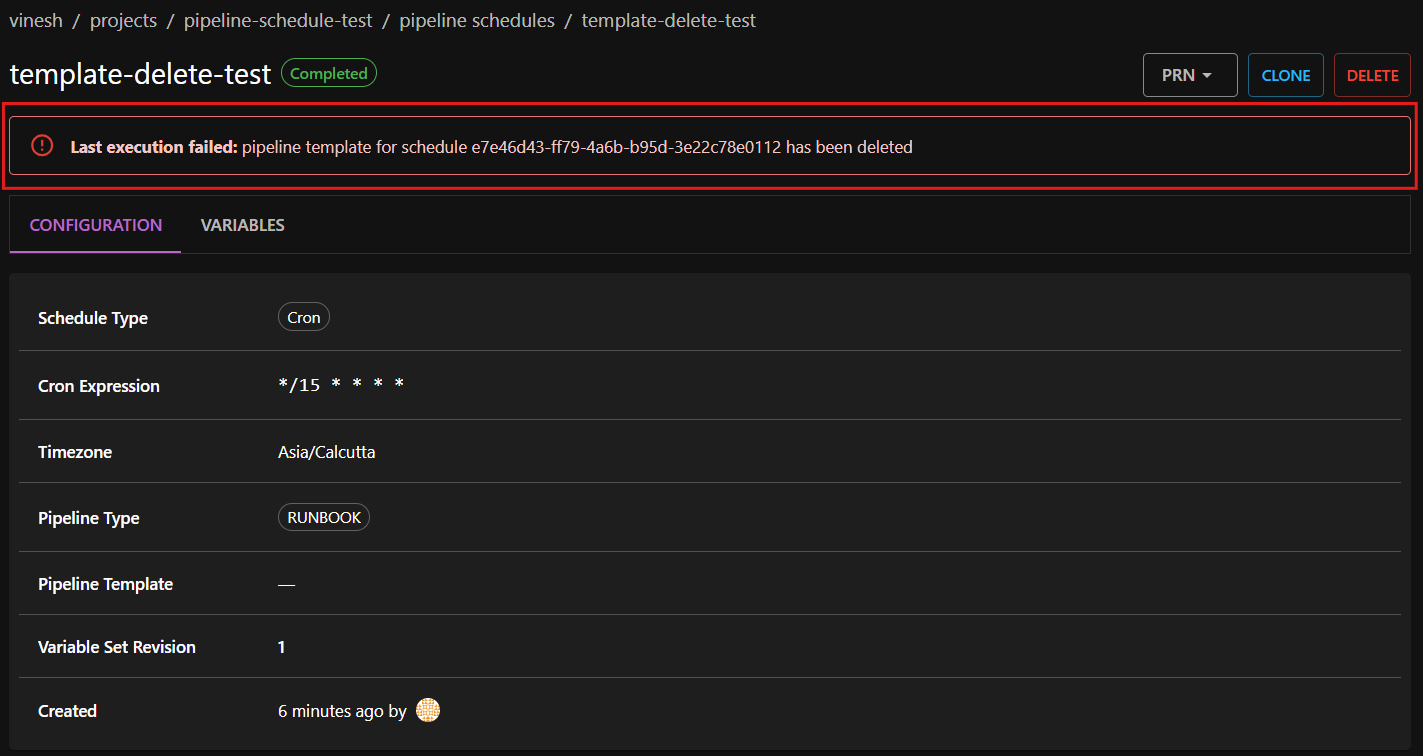
If the schedule encountered an error on its most recent run, a red alert displays "Last execution failed" with the error message. This is the primary place to look when a schedule stops producing pipelines.
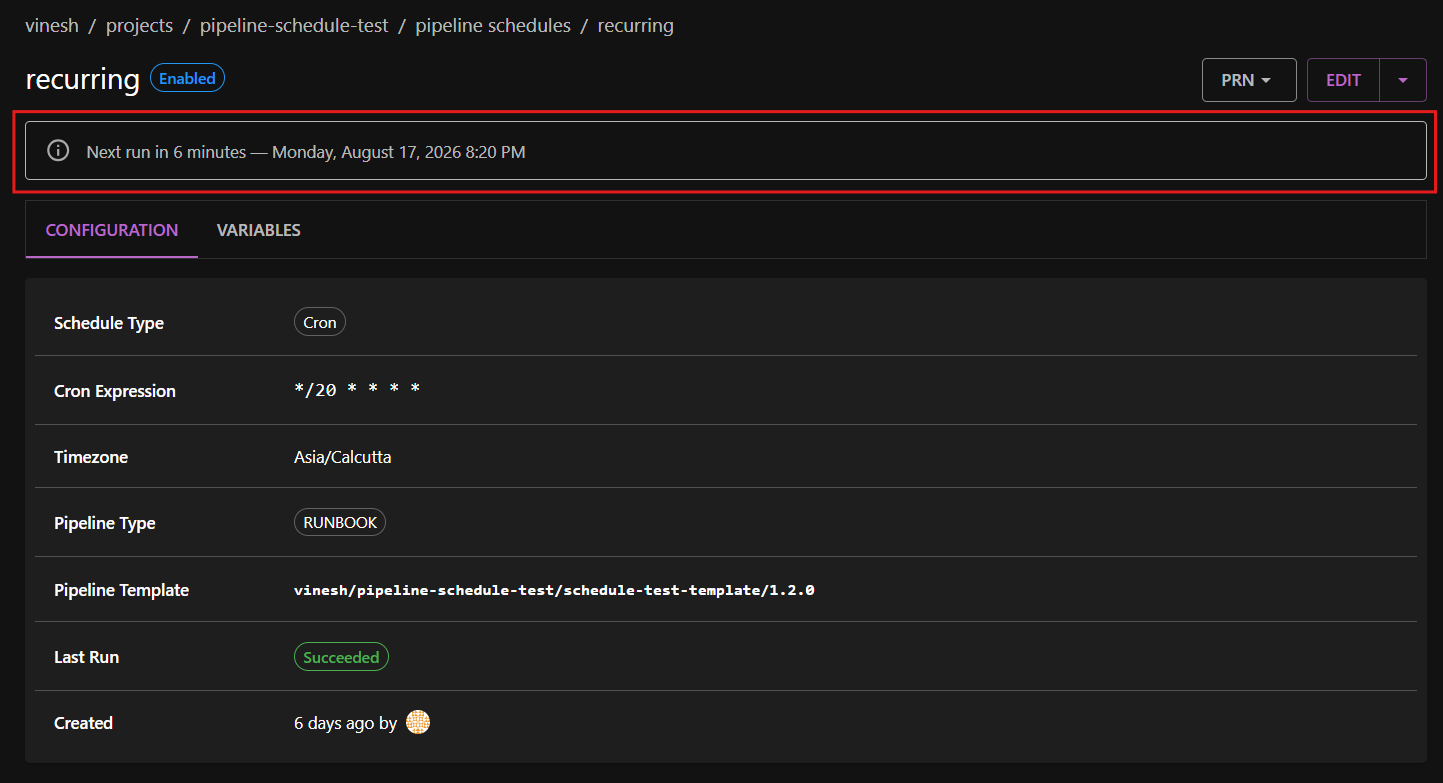
If the schedule is enabled and has a next run time, a blue info alert displays when the next pipeline will be created.
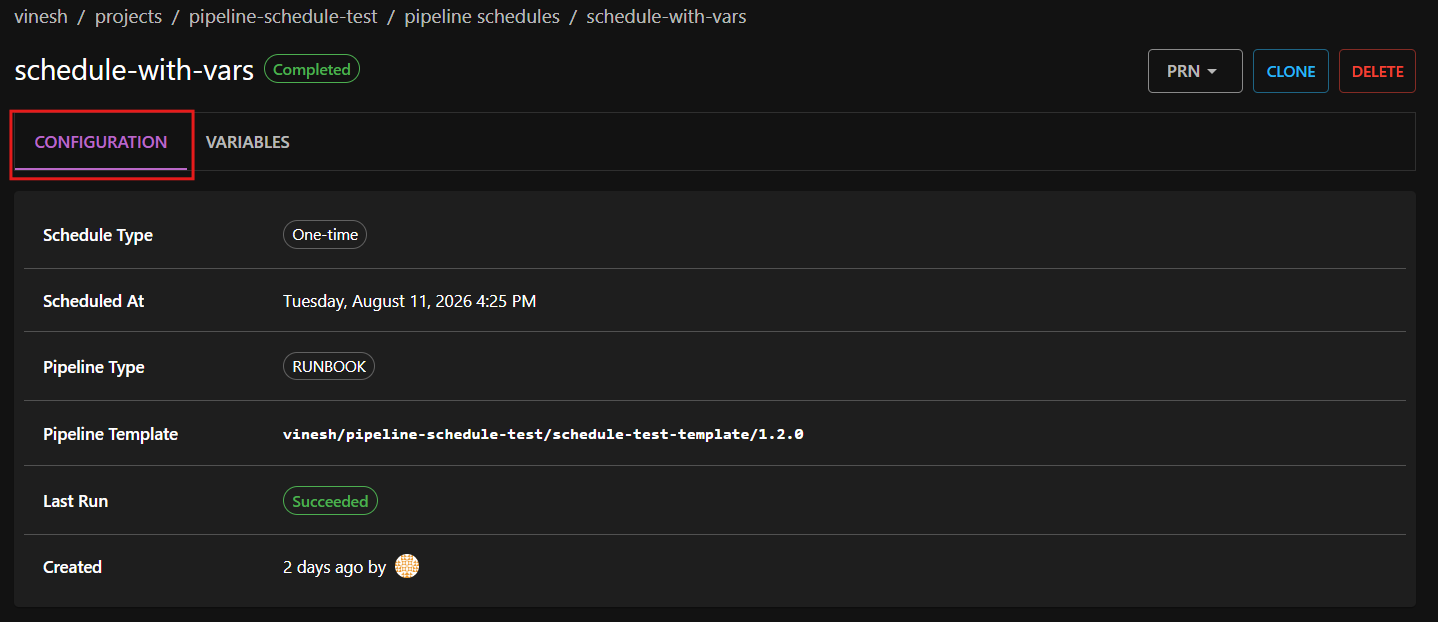
The details page contains the following tabs:
- Configuration: all schedule settings including the schedule type, cron expression or scheduled date, timezone, pipeline type, environment, pipeline template, variable set revision, last run status, and creation info (who created the schedule and when, shown with avatar).
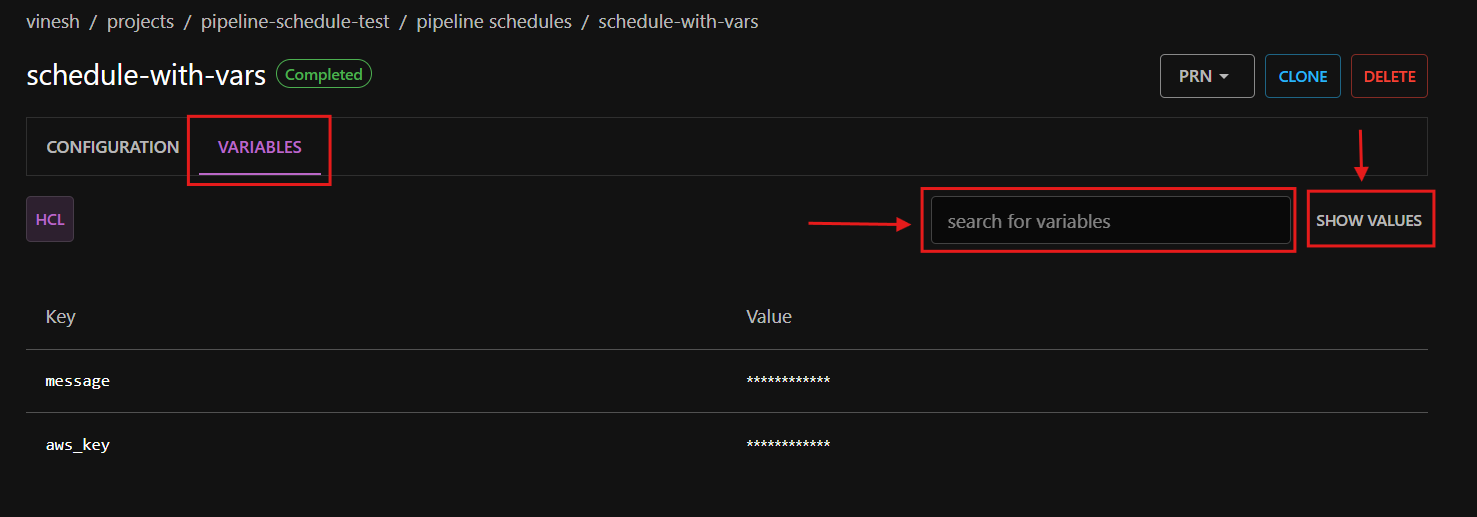
- Variables: the input variables assigned to the schedule. Use the Show Values button to toggle visibility of variable values. A search field is available to filter variables by name or value.
By default, the Configuration tab is displayed. Select the Variables tab to view or manage the schedule's input variables.
Creating a pipeline schedule
- Navigate to the target project and select Pipeline Schedules from the sidebar.
- Select New Schedule.
- Fill in the following fields:
- Name: a unique name for the schedule within the project (unique among non-completed schedules). Names can only include lowercase letters, numbers, hyphens, and underscores, and must start and end with a letter or number (max 64 characters).
- Description: optional description of what the schedule does.
- Pipeline Type: select
DeploymentorRunbook. - Environment: required for deployment pipelines. Select the target environment.
- Pipeline Template: select the pipeline template to use.
- Version: select the version of the pipeline template.
- Schedule Type: select
Specific Datefor a one-time schedule orCRONfor recurring. - CRON Expression: required for cron schedules. Define the recurrence pattern.
- Timezone: optional timezone for cron schedules. Defaults to UTC if not specified.
- Scheduled Date and Time: required for specific date schedules. Select when the pipeline should run. If you select a time in the past, a warning appears: "This time is in the past. The pipeline will run immediately."
- Variable Set Revision: optionally pin a specific variable set revision.
- Pipeline Variables: optionally add input variables that will be set when the scheduled pipeline runs. Select Add Variable to add them.
- Select Create Schedule.
Validation rules
- Cron schedules must have an average interval of at least 15 minutes.
- Deployment pipelines require an environment to be selected.
- Environment protection rules are checked at creation time. The applicable rules must be satisfied before the schedule can be created.
Managing pipeline schedules
Editing a schedule
- Navigate to the schedule details page.
- Select Edit.
- Modify the desired fields. All fields are editable except the schedule name, which cannot be changed after creation.
- Select Save Changes.
Environment protection rules are also checked when changing the pipeline type to deployment or changing the environment.
Enabling and disabling a schedule
You can pause a schedule without deleting it:
- Navigate to the schedule details page.
- Click on the upside-down caret next to the Edit button.
- Select Disable Pipeline Schedule to pause it, or Enable Pipeline Schedule to resume it.
When re-enabling a deployment schedule, the applicable environment protection rules must be satisfied. The system also verifies that the assigned pipeline template still exists.
Cloning a schedule
Cloning creates a new schedule pre-filled with the same settings as an existing one. This is available for any schedule regardless of its status. Cloned schedules are always created in the Enabled state, even if the original was Disabled or Completed.
- Navigate to the schedule you want to clone.
- For enabled or disabled schedules: click on the upside-down caret next to the Edit button and select Clone Pipeline Schedule. For completed schedules: select the Clone button.
- The create form opens with all settings copied from the original. The name has "-copy" appended, and the date/time is cleared for one-time schedules.
- Adjust settings as needed (you must provide a unique name) and select Create Schedule.
Deleting a schedule
- Navigate to the schedule details page.
- For enabled or disabled schedules: click on the upside-down caret next to the Edit button and select Delete Pipeline Schedule. For completed schedules: select the Delete button.
- In the confirmation dialog, select Delete to confirm the deletion. Select Cancel to keep the schedule.
All management actions (creating, editing, enabling, disabling, and deleting schedules) appear in the project activity feed.
Automatic execution
When a schedule is due, the system automatically creates and runs a pipeline using the configured template, variables, and settings.
- Cron schedules: after each run, the system recalculates the next run time based on the cron expression. The schedule stays enabled and continues firing on the defined cadence.
- One-time schedules: once triggered, the schedule moves to Completed status and becomes read-only, regardless of whether the pipeline succeeds or fails.
The system polls for due schedules every 15-30 seconds.
Pipelines created by a schedule display the schedule as the trigger in the pipelines list instead of a user or service account.
Hovering over the avatar in the pipelines list reveals the schedule's PRN. This is how to tell a scheduled pipeline apart from a manually created one.
Maintenance mode
Schedules do not fire while the system is in maintenance mode. When maintenance ends, any overdue schedules are picked up and executed on the next polling cycle. The system does not run multiple times to "catch up" for missed intervals. Each schedule fires once after recovery.
Environment protection rules at execution time
Scheduled pipelines are executed by the system and are not subject to environment protection rule checks at execution time.
Failed runs
A scheduled run can fail if the pipeline template was force-deleted, a pinned variable set revision no longer exists, the template is no longer accessible to the project, or the pipeline could not be built (for example, due to a validation error in the template).
Where to see the error:
- The Last Run column in the schedules list shows a red "Failed to start" indicator.
- The schedule details page shows a red "Last execution failed" alert with the full error message.
- The filter panel has a "Failed to start" option under Last Run to find affected schedules.
What happens next:
- For cron schedules, the error is recorded but the schedule stays enabled. It retries on the next cadence and recovers on its own once the underlying cause is fixed.
- For one-time schedules, the schedule moves to Completed with the error recorded.
- For force-deleted templates, the schedule moves to Completed regardless of type, because it can never run again.
How to recover:
- If the schedule is still enabled, edit it to fix the cause (for example, select an accessible template or re-pin an existing variable set revision). The error clears automatically on the next successful run. Editing the schedule alone does not clear the error.
- If the schedule has moved to Completed, it is read-only. Clone it, adjust the settings, and create a new schedule.
Completed state
A schedule moves to the Completed status when:
- A one-time schedule fires (regardless of whether the pipeline succeeds or fails).
- The assigned pipeline template is force-deleted.
Once completed, the schedule becomes read-only. It cannot be edited or re-enabled. You can clone a completed schedule to create a new one with the same settings.
Template deletion behavior
- Normal delete: if an enabled schedule references a pipeline template, the template cannot be deleted. You must first delete the schedule or edit it to reference a different pipeline template.
- Force delete: force-deleting a template removes it from the schedule. The schedule is marked Completed with an error on its next scheduled run when the system detects the template is no longer available.
Filtering and searching
The filter panel on the pipeline schedules list provides the following filter groups:
- Status: Enabled, Disabled, Completed. By default (no status filter selected), only enabled and disabled schedules are shown. You must check Completed to see completed schedules.
- Last Run: Succeeded, Failed, In Progress, Canceled, Failed to start, Not started.
- Schedule Type: Cron, One-time.
- Pipeline Type: Runbook, Deployment.
Use the search bar to find schedules by name.
Frequently Asked Questions (FAQ)
What is the minimum interval for cron schedules?
The minimum average interval between runs is 15 minutes. A cron expression that would fire more frequently than this is rejected at creation time.
What happens if the system is down when a schedule is due?
When the system comes back online, any overdue schedules are detected and executed on the next polling cycle. The system runs the pipeline once. It does not run multiple times to "catch up" for missed intervals.
What happens during maintenance mode?
Schedules do not fire during maintenance mode. Once maintenance ends, overdue schedules are picked up and fire on the next polling cycle.
What happens if I pick a date in the past for a one-time schedule?
The schedule will fire immediately on the next polling cycle (within seconds), since the system considers it already overdue.
What happens if environment protection rules change after a schedule is created?
Environment protection rules are enforced when a schedule is created or re-enabled, not at execution time. If the rules change after a schedule is created, the schedule will continue to fire as normal. However, if the schedule is disabled and then re-enabled, the updated rules are checked at that point.
When should I clone vs enable a schedule?
Select Enable Pipeline Schedule when you want a disabled schedule to resume with the same settings. Use Clone Pipeline Schedule when you want to create a new one based on an existing one. For example, if the original is completed and you want to reuse its configuration with a new name or different settings.
Are there resource limits on how many schedules a project can have?
Yes. Each project has a default limit of 100 pipeline schedules.
Is there CLI support for pipeline schedules?
Pipeline schedules are currently managed through the UI and API only. CLI support is not available at this time.
Who can create and manage pipeline schedules?
Members with the Owner, Release Manager, or Developer role have full access to create, view, edit, and delete pipeline schedules. Members with the Publisher or Viewer role can only view pipeline schedules. Learn more about roles in Memberships.